📝 Form Builder
The Form Builder in C360 allows you to design, manage, and assign forms that can be integrated with campaigns, landing pages, and lead management.
To access it:
➡️ Go to Marketing → Components → Form Builder from the left-hand menu.
🗂️ Form Builder Views
- The Forms list provides a complete overview of all created forms.
- Form Builder can be viewed in Grid View or List View.
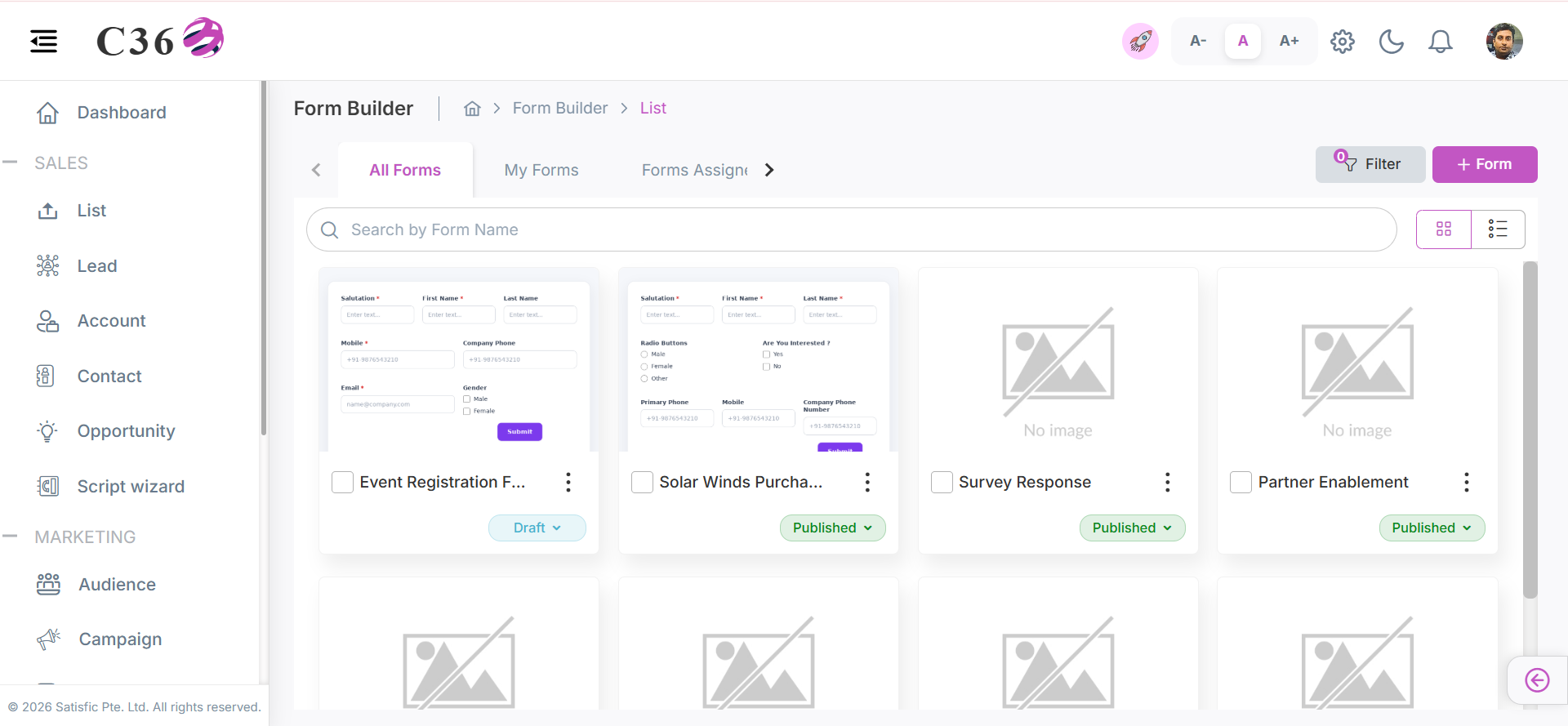
- 🔲 Grid View
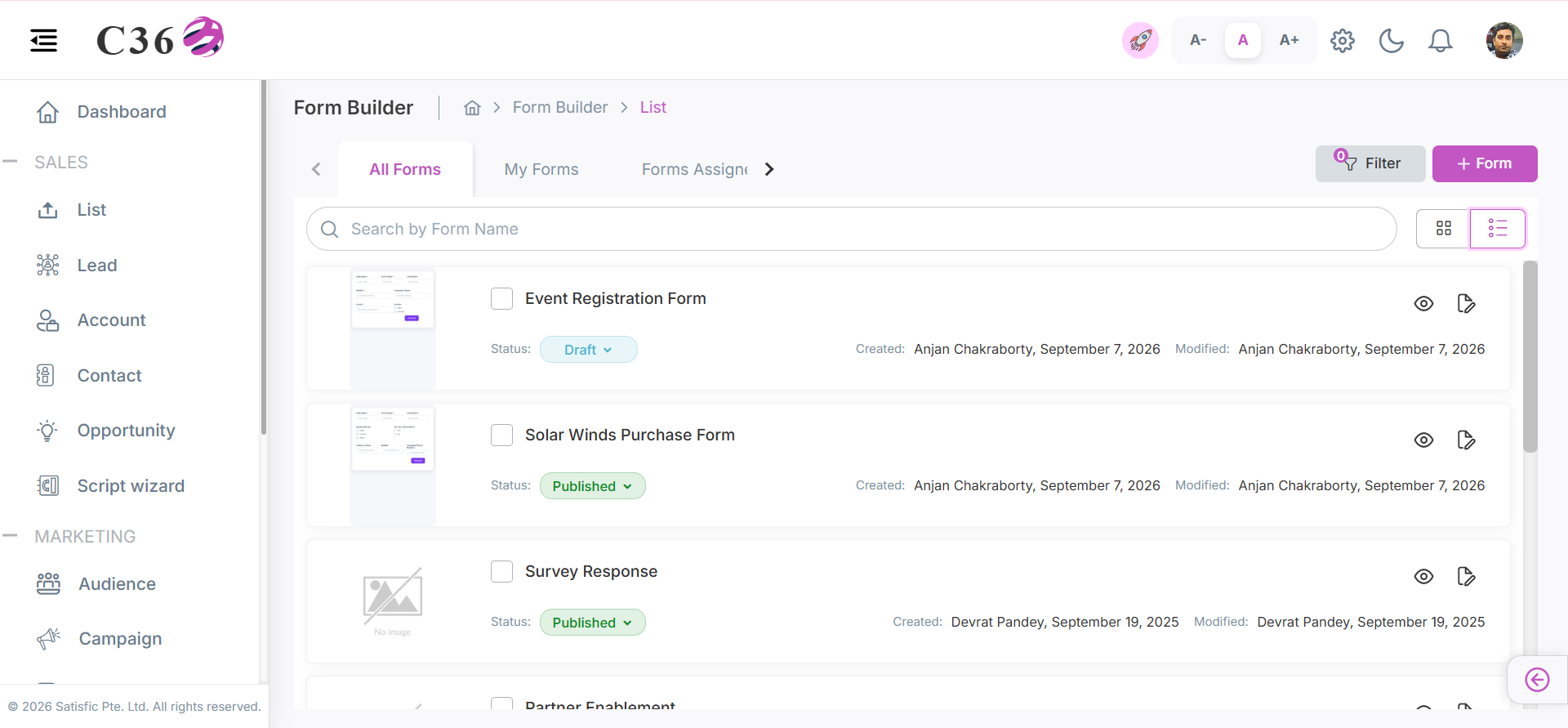
- 📜 List View
- Grid View – Shows each form as a card with quick actions like edit.
- Can change the status of the form from Draft to Published and vice versa.
- Hovering on "i" icon allows you to see the Description.
- Hoverring on the Form Card and clicking the preview icon allows you to see the form preview in a new tab.
- List View – Shows Forms in a table with columns like Name, Status, Created By, Modified By, Preview and Edit.
- Can change the status of the form from Draft to Published and vice versa.
🔍 Searching for a Form
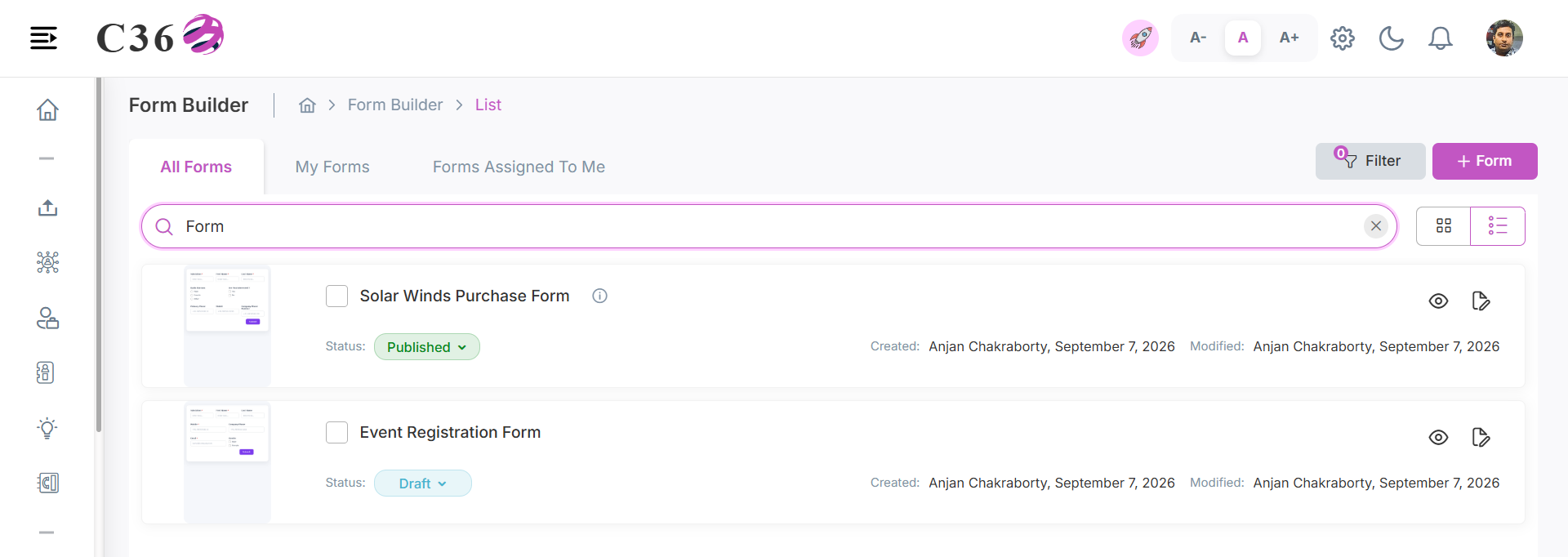
- Enter a keyword or form name in the Search bar.
- Matching results will appear instantly.
🎛️ Filtering Forms
You can filter Forms by:
- Status
- Category
- Created At
- Modified At
- All/ My Form / Form Assigned To Me
- All: Created by me/Assigned to me/Created by below users.
- My Form: Created by me
- Form Assigned To Me: The form which was assigned to me by someone.

➕ Add Form
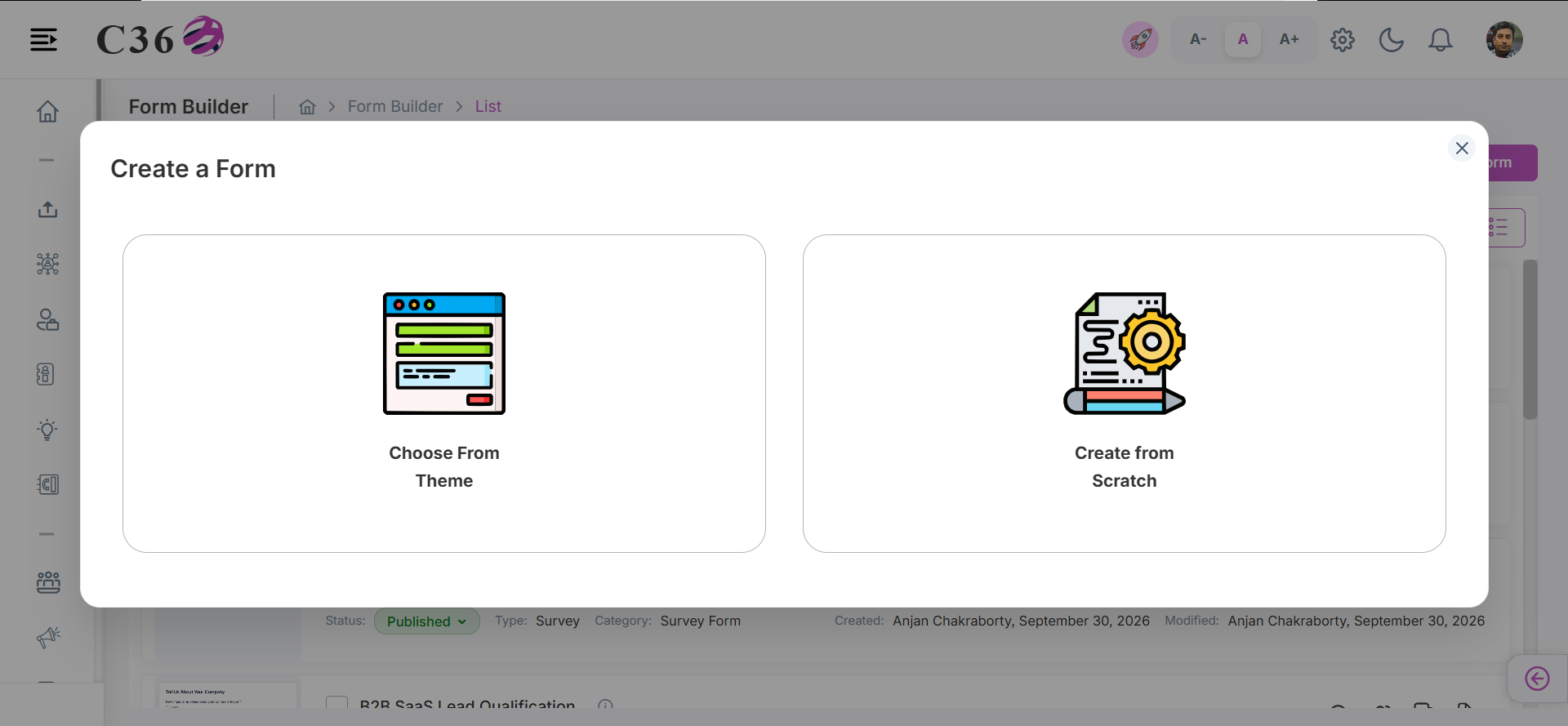
- Click Add Form to create a new form.
- Select Create From Scratch.
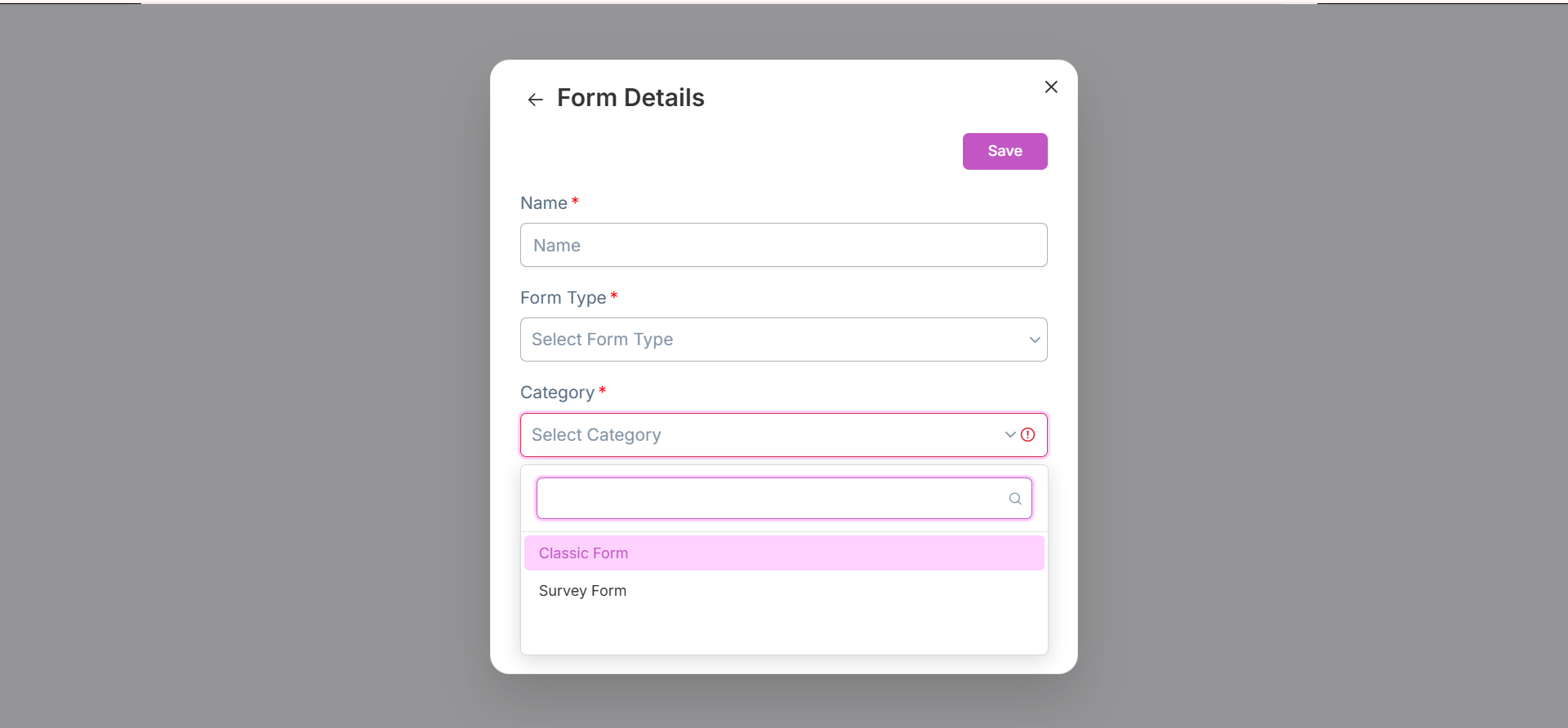
- Fill in the Form Name, Category, and Description.
- Select the Form Type from the dropdown.
- Form has classified into two types: Classic Form and Survey Form.
📝 Classic Form
Classic Form is used to collect information from the users. It can be used for Lead Generation, Contact Us, Newsletter Subscription etc.
- Select type as Classic and click Save to create the form.
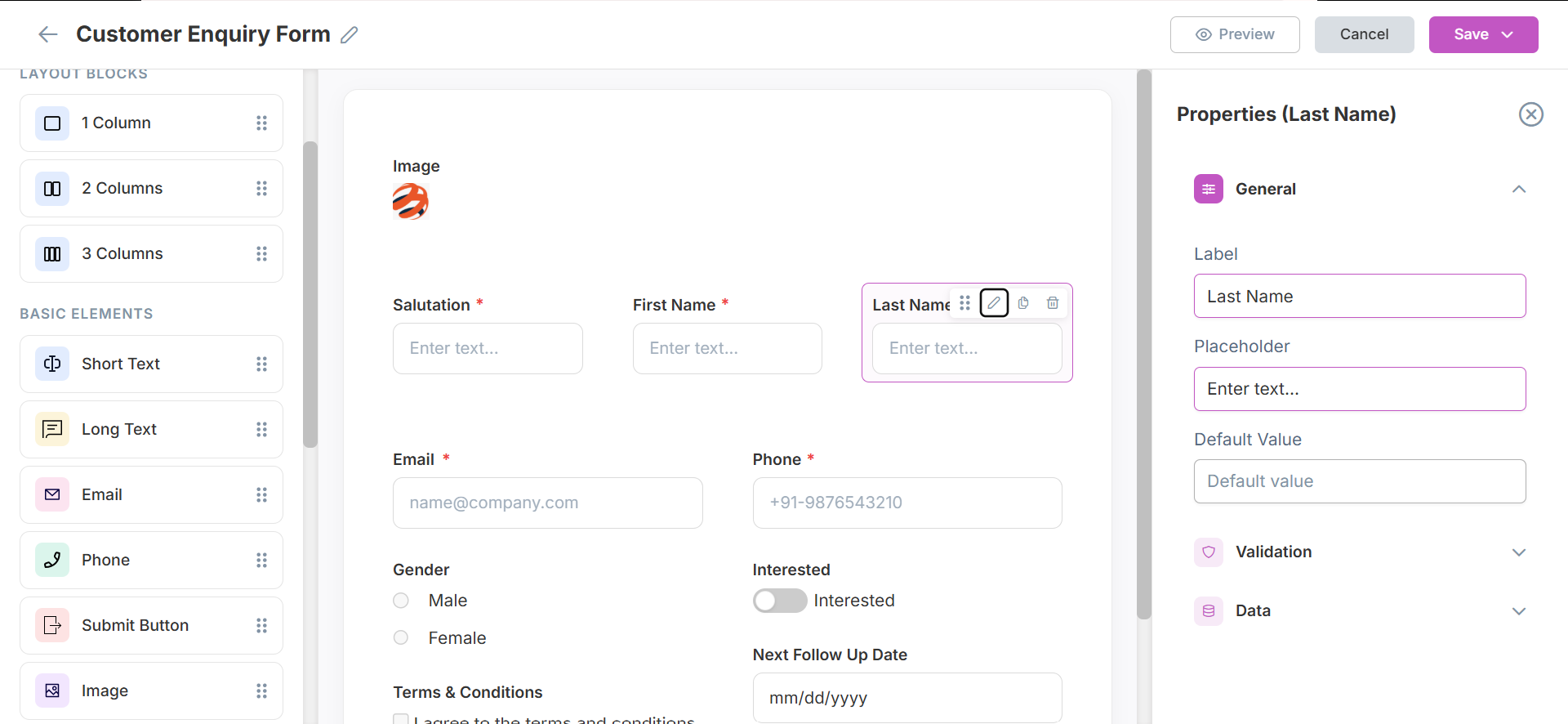
- After saving, you will be redirected to the Form Builder page where you can add fields and actions.
- Costumize the form by adding fields and defining actions.
- Click on Save as Draft to save the form as a draft or Save as Publish to make it live.
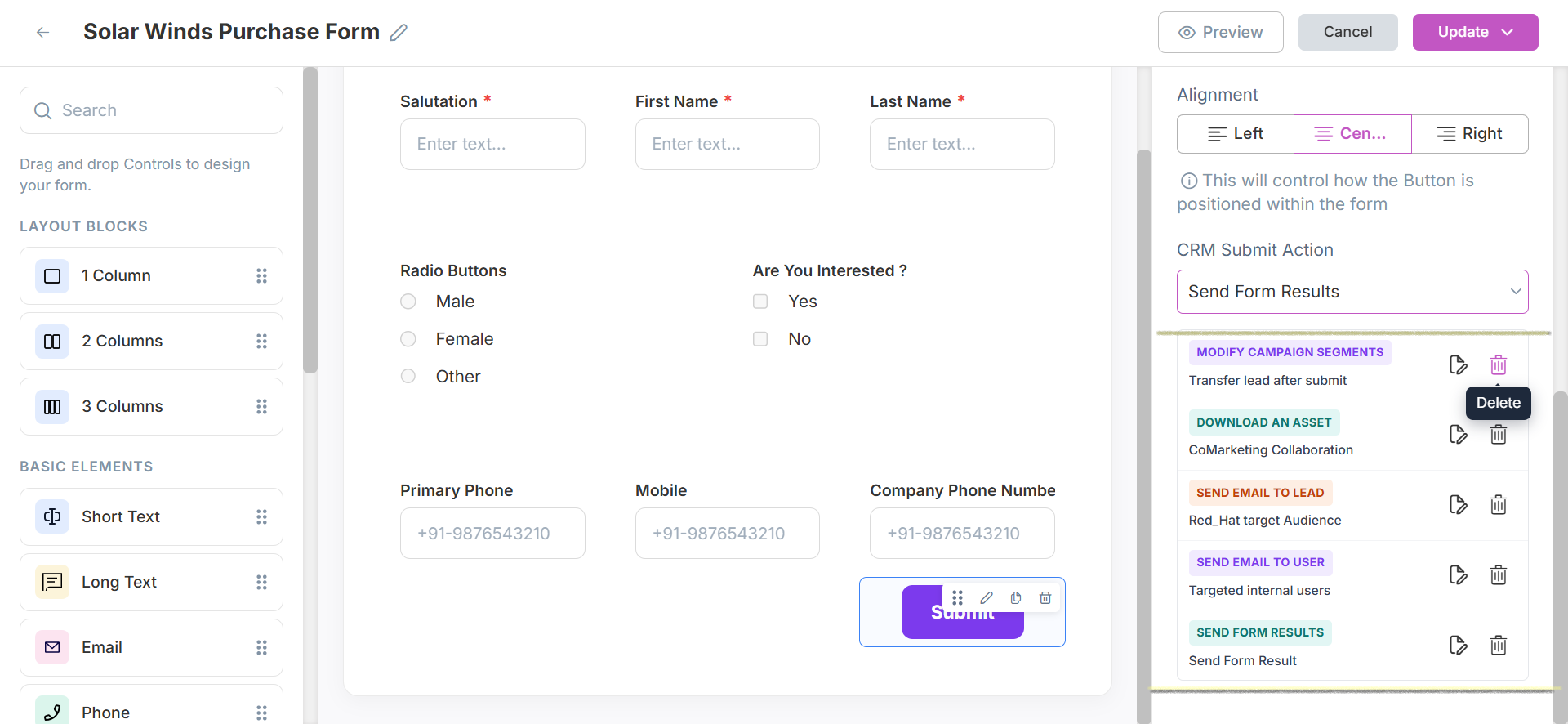
Click to see additional actions in builder page
- Can edit the form name.
- Can preview the form by clicking on the Preview button.
- Can Edit,Copy,Delete and Drag the form fields.
- On edit field, you can change the Field Label, Field Type, Placeholder, Required Field, Default Value, Options.
- Can Cancel the form creation process by clicking on Cancel button.
- Can search the left panel elements by typing the field name in the search bar.
- On Submit button you can add a Custom Message or Redirect to URL as submit action.
- On Submit button you can also add ** CRM Submit Actions** like Modify Campaign Segments, Download an Asset, Send Email to Lead, Send Email to User, Send Form Results.
⚡ CRM Submit Actions Defination and Usage.
Define automated actions that trigger after form submission.
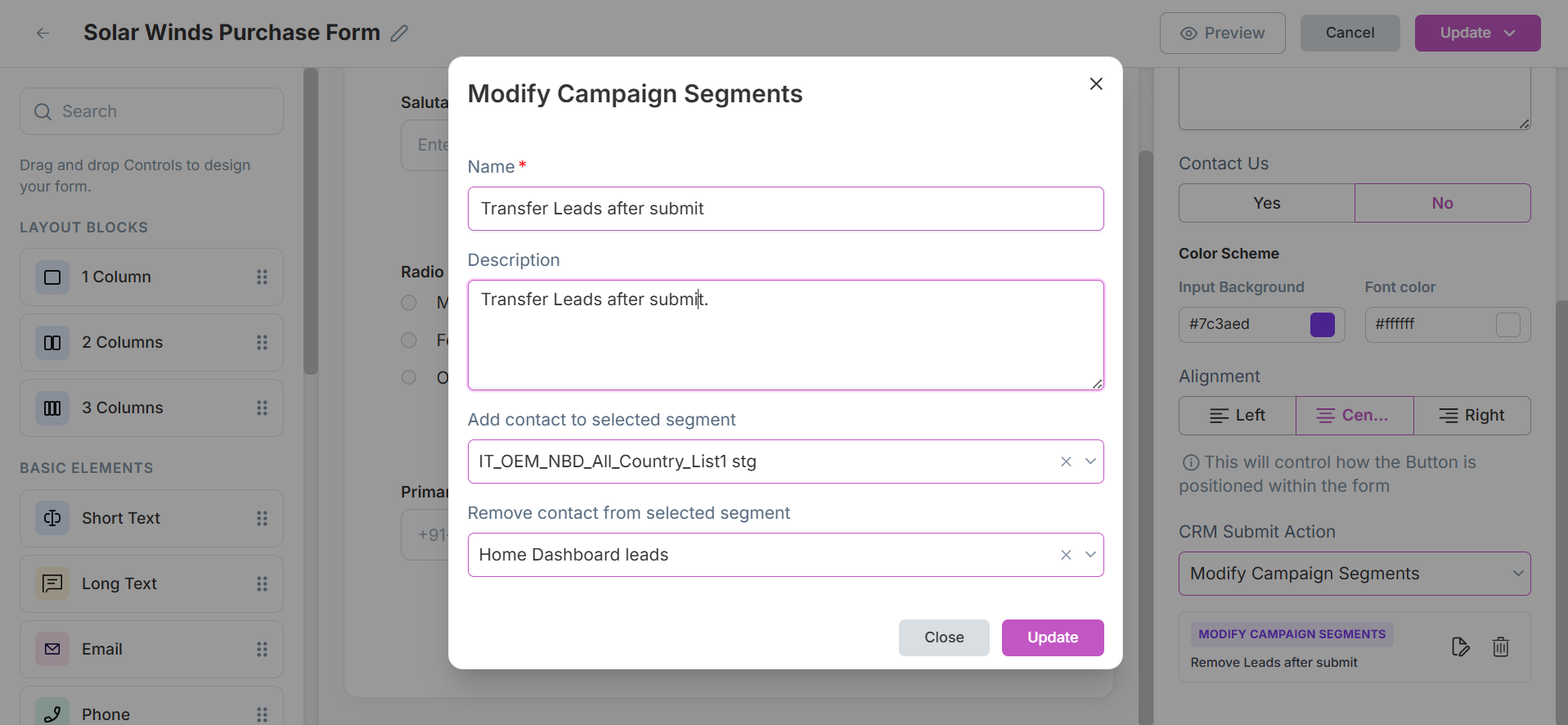
- 📊 Modify Campaign Segments
- Add or remove contacts from segments.
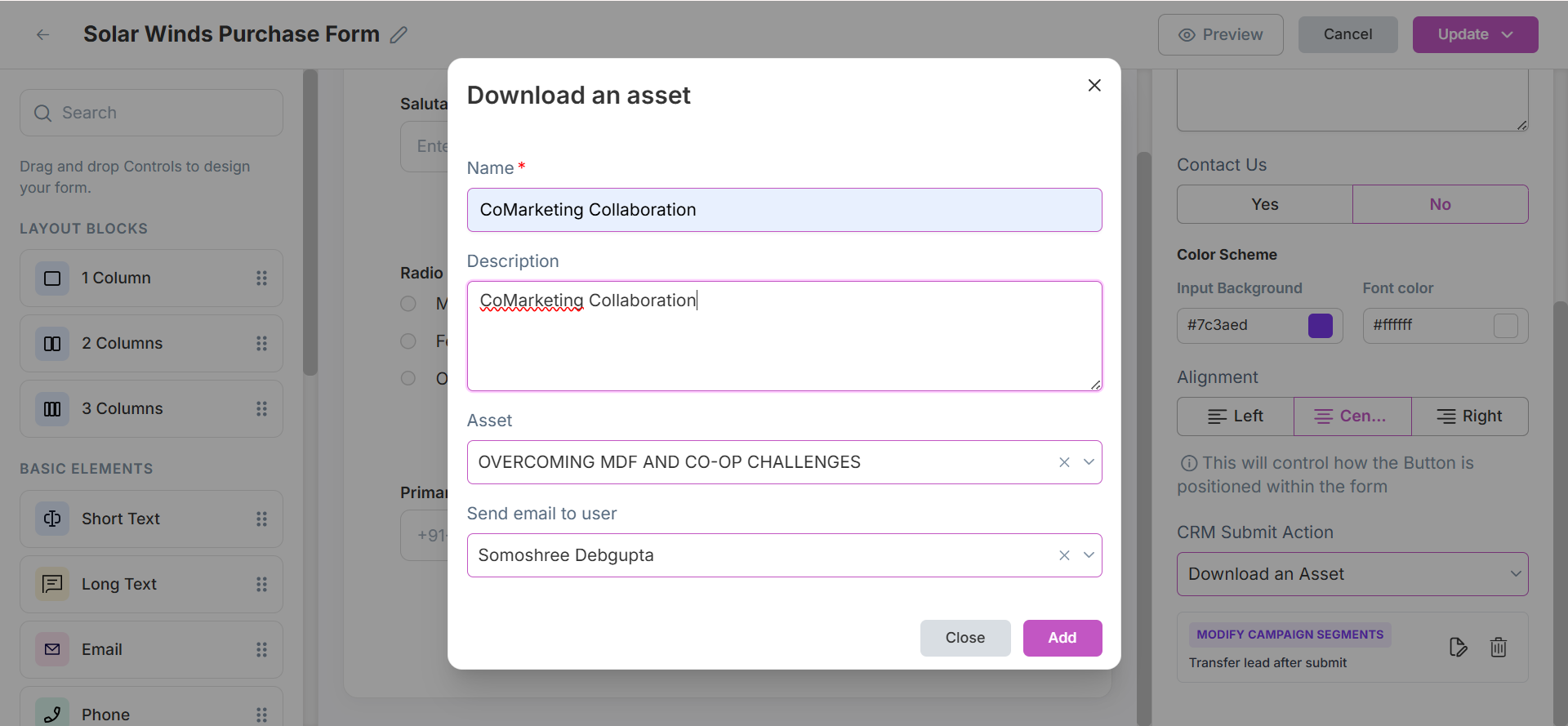
- 📂 Download an Asset
- Provide downloadable content upon after form submission.
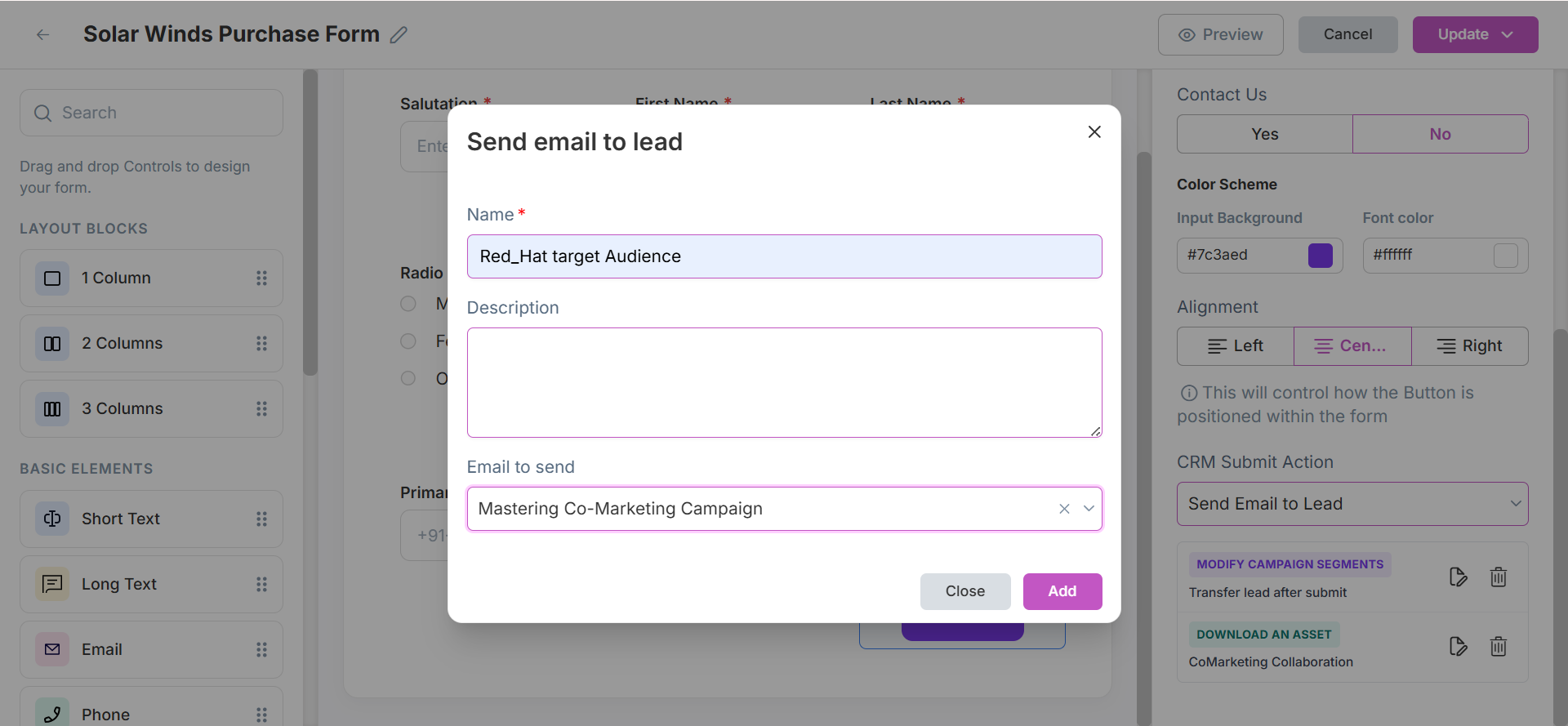
- 📧 Send Email to Lead
- Send an email to the lead after form submission.
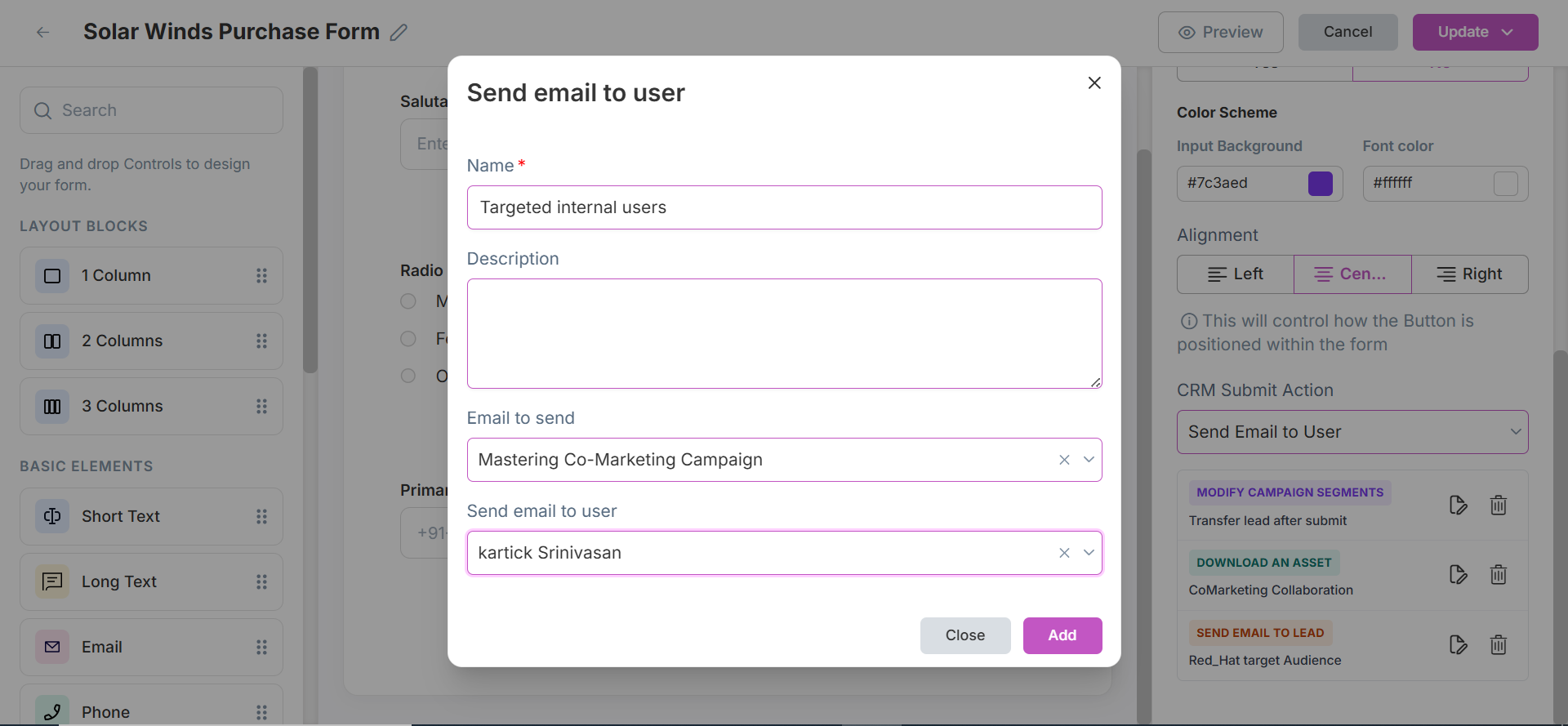
- 👤 Send Email to User
- Send an email to the user after form submission.
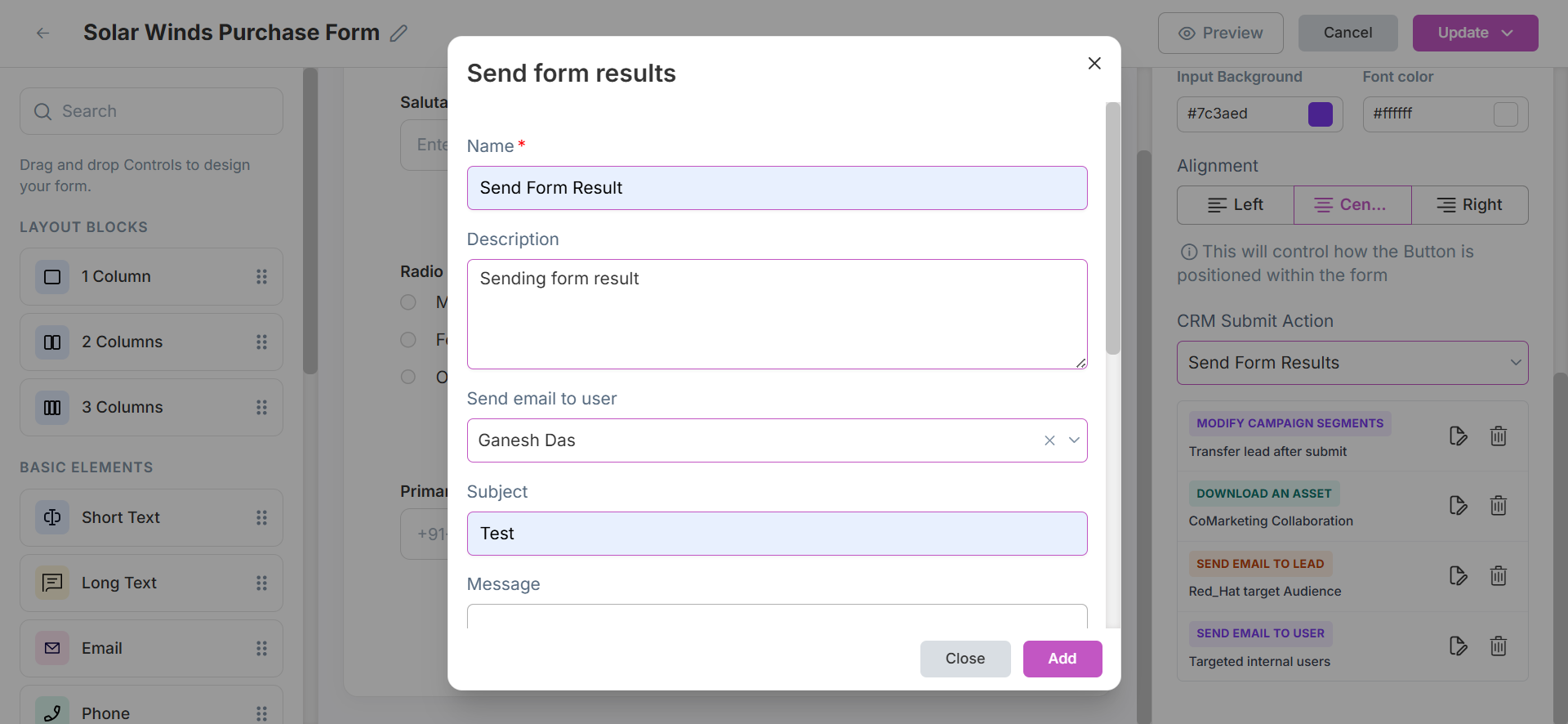
- 📤 Send Form Results
- Send form responses via email with options for To, CC, BCC, Send to Owner, Send to Contact.
- To edit or delete individual fields/actions, use the icons beside each item.
- Always click Update after changes.
📋 Survey Form
Survey Form is used to collect feedback from the users. It can be used for Customer Satisfaction Survey, Employee Engagement Survey, Product Feedback Survey etc.
- Select type as Survey.
- Survey Form has classified into three types: Simple Survey, Score Survey, and If/Else survey.
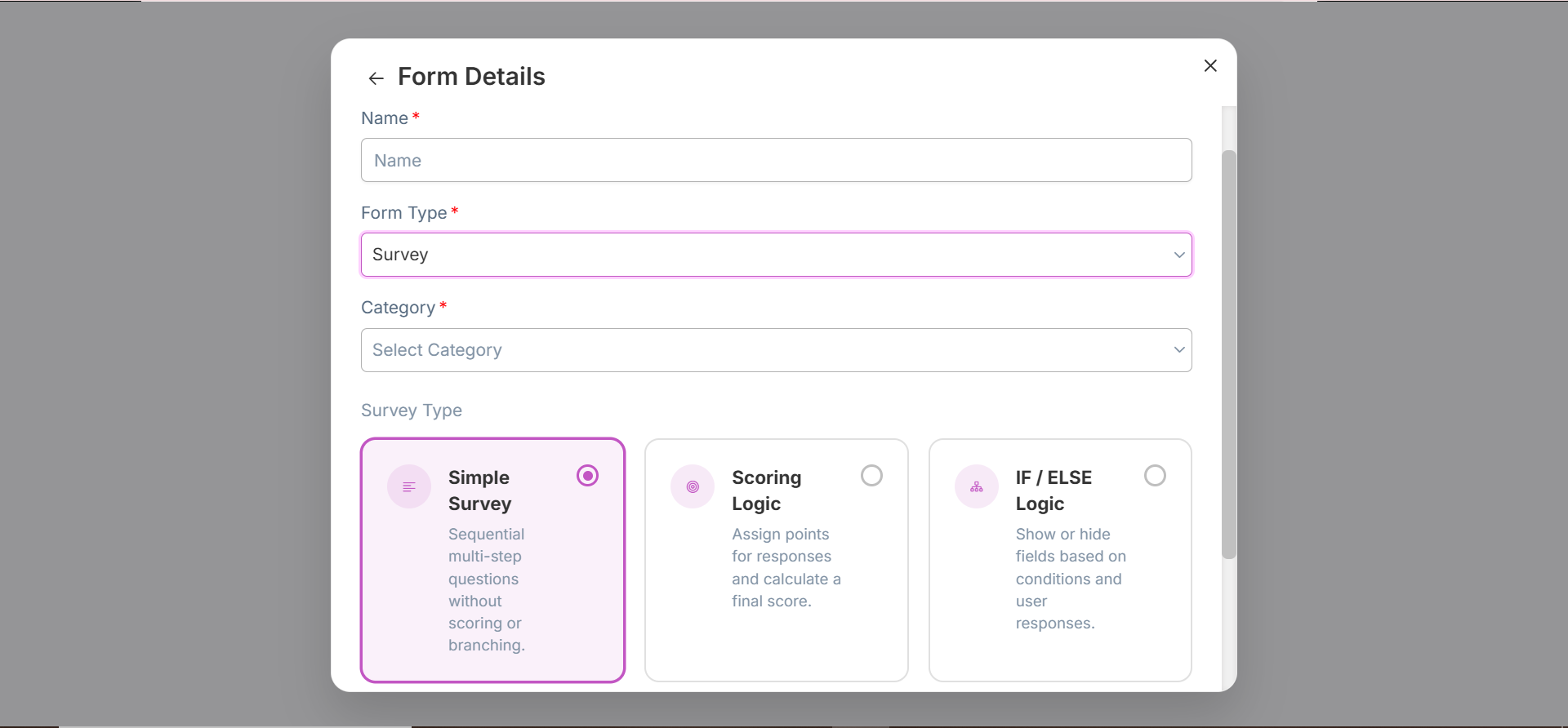
- ☑️ Simple Survey
- ⭐ ScorIng Logic Survey
- 🔀 If/Else Logic Survey
You can set up sequential multi-step questions without scoring or branching.
- Select type as Simple Survey and click Save to create the simple survey form.
- After saving, you will be redirected to the Form Builder page where you can add fields and actions.
- Click on Add Page to add a new page to the survey form.
- Set up the survey form by adding questions and defining actions.
- Click on Add Ending to add a new ending to the survey form.
- Click on Save as Draft to save the form as a draft or Save as Publish to make it live.
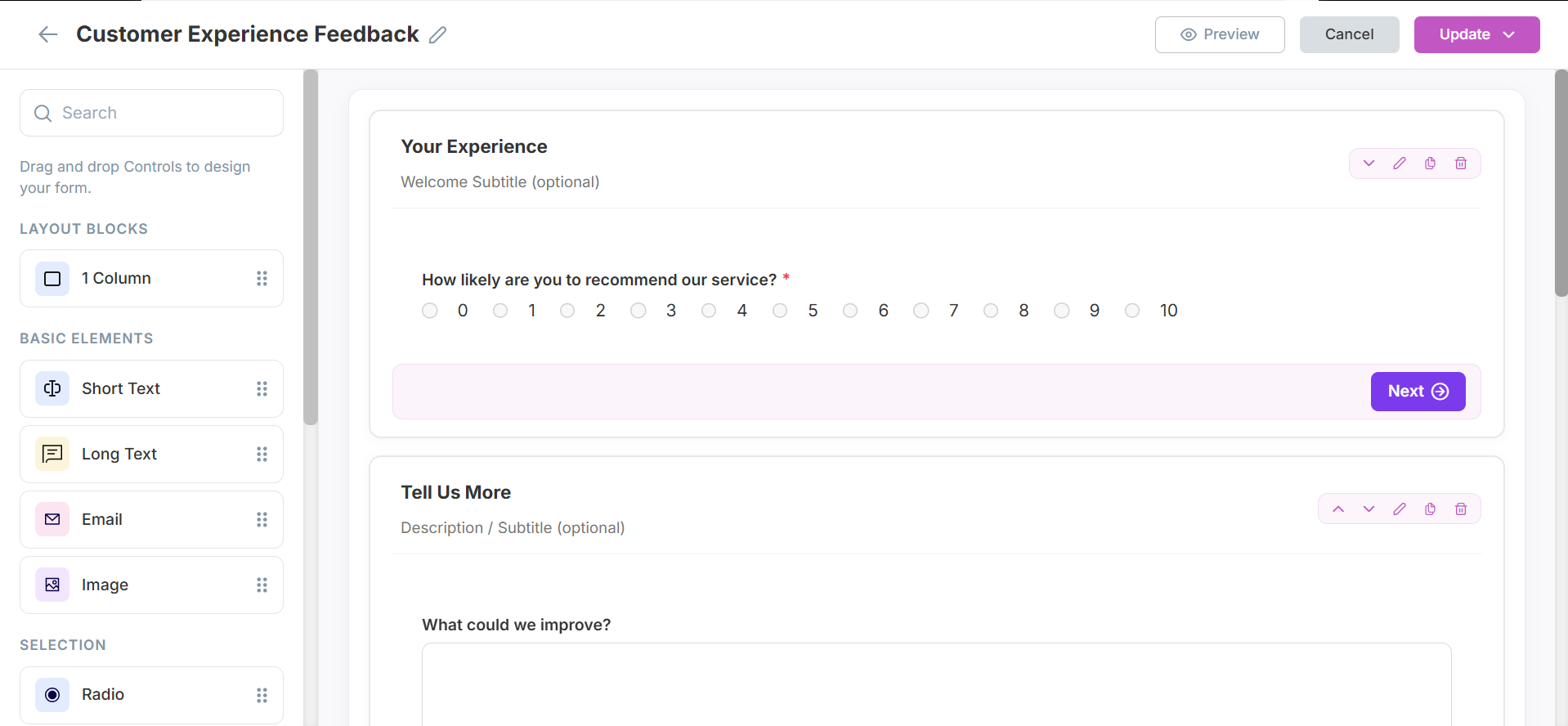
- You can add only one ending to the simple survey form.
- Endings can be used to route respondents to different results or thank you pages.
Assign points for responses and calculate a final score.
- Select type as Scoring Logic and click Save to create the scoring logic survey form.
- After saving, you will be redirected to the Form Builder page where you can add fields and actions under Workflow tab.
Workflow Tab
- Click on Add Page to add a new page to the survey form.
- Set up the survey form by adding questions and defining actions.
- Set the the Score for each options of the questions in the scoring survey form.
- Click on Add Ending to add endings to the survey form which you show based on the score.
- Click on Condition tab to set the conditions for the endings based on the score.
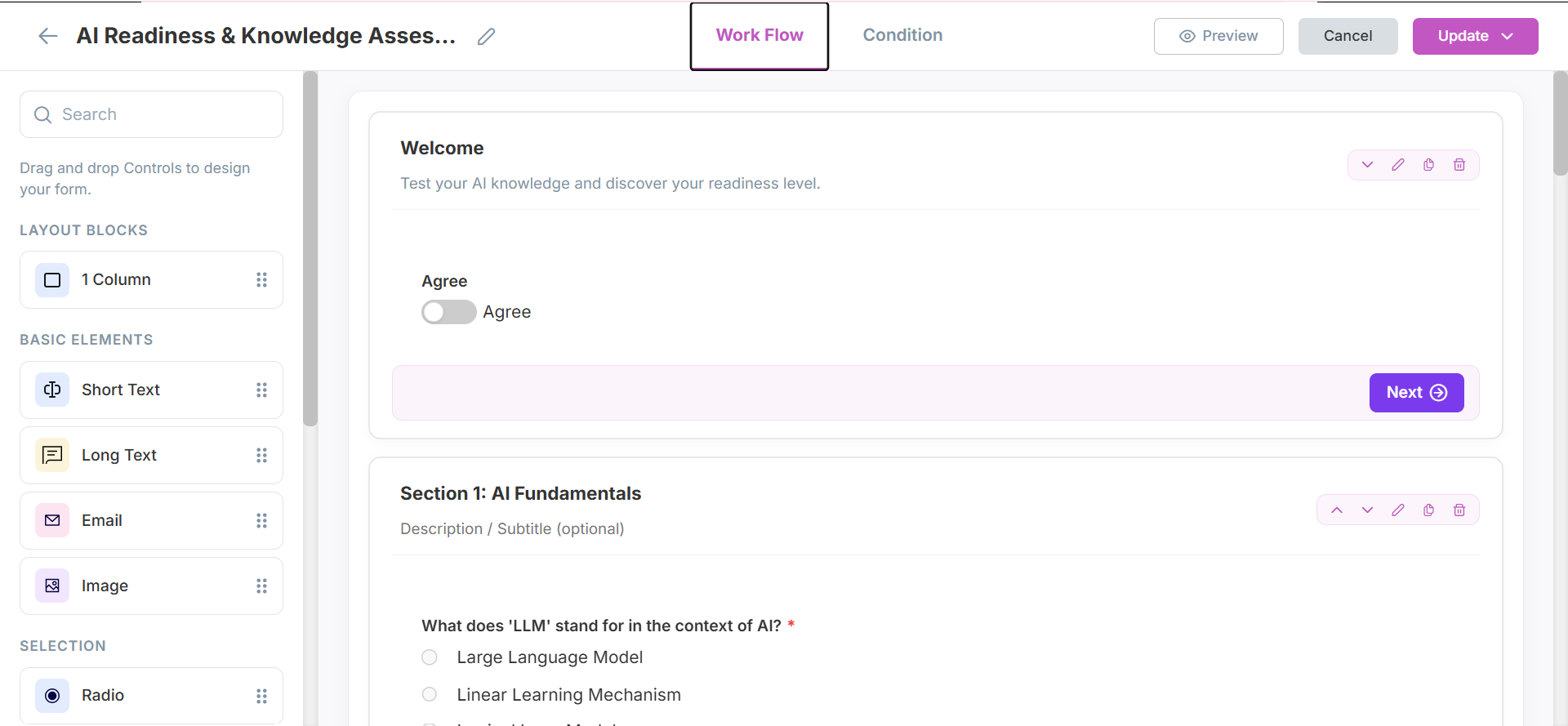
- You can add multiple pages to the scoring survey form.
- You can add multiple endings to the scoring survey form.
- Endings can be used to route respondents to different results or thank you pages.
Condition Tab
- Click on Add Score Rule to Calculate respondent scores from question choices and route respondents to different endings.
- Set up the Score routing rules.
- Click on Save as Draft to save the form as a draft or Save as Publish to make it live.
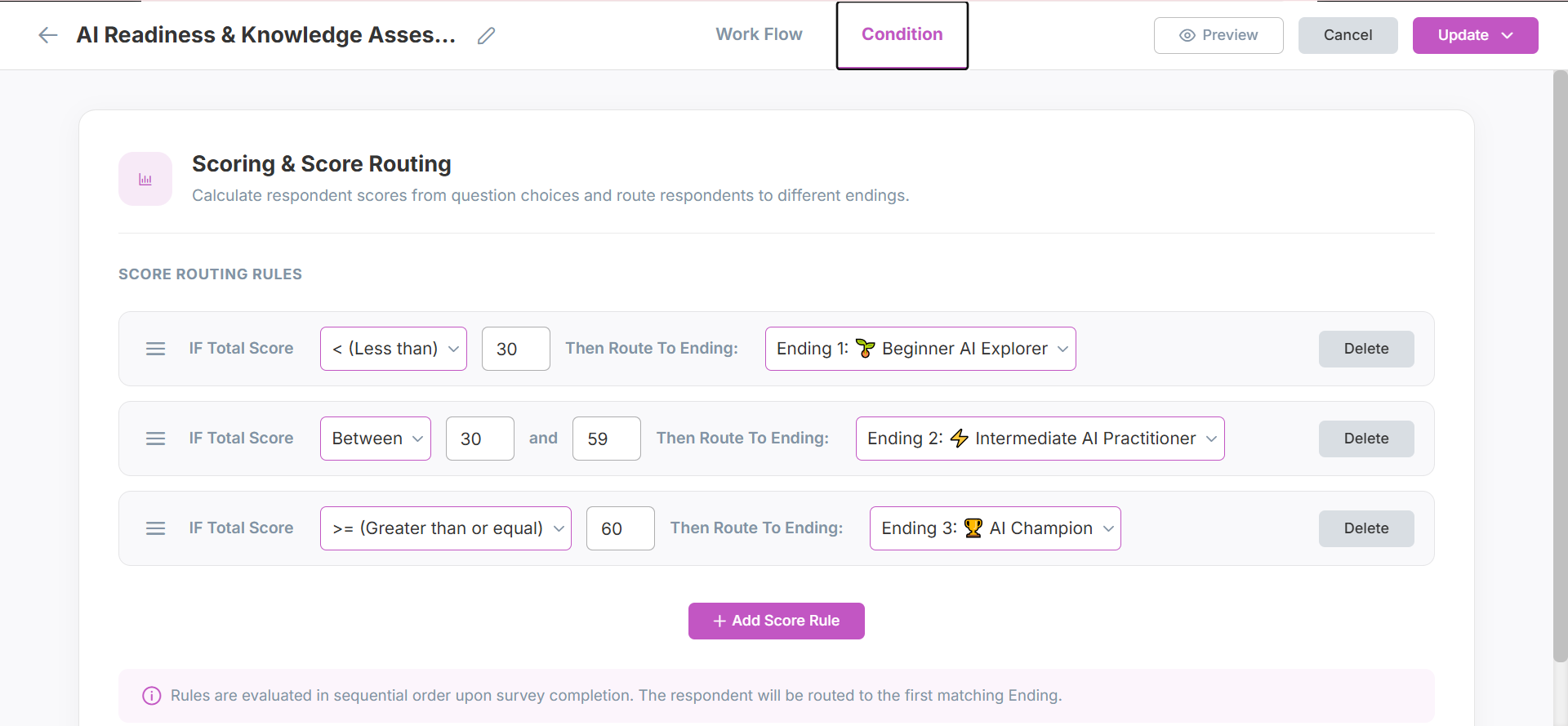
- Endings are mandatory to set the conditions for the scoring survey form.
- Also you should have set the Score for each options of the questions in the scoring survey form before setting the conditions.
- You can add multiple score rules to the scoring survey form.
Add Score Rule Configure hierarchical IF/Else rules to route users to different steps based on their answers. If scoring is enabled, option scores are tallied and evaluated.
- Select type as If/Else Logic and click Save to create the if/else logic survey form.
- After saving, you will be redirected to the Form Builder page where you can add fields and actions under Workflow tab.
Workflow Tab
- Click on Add Step/Page to add a new page to the survey form.
- Set up the survey form by adding questions and defining actions.
- Set the the Score for each options of the questions in the scoring survey form.
- Click on Add Ending to add endings to the survey form which you show based on the score.
- Click on Condition tab to set the conditions for the endings based on the score.
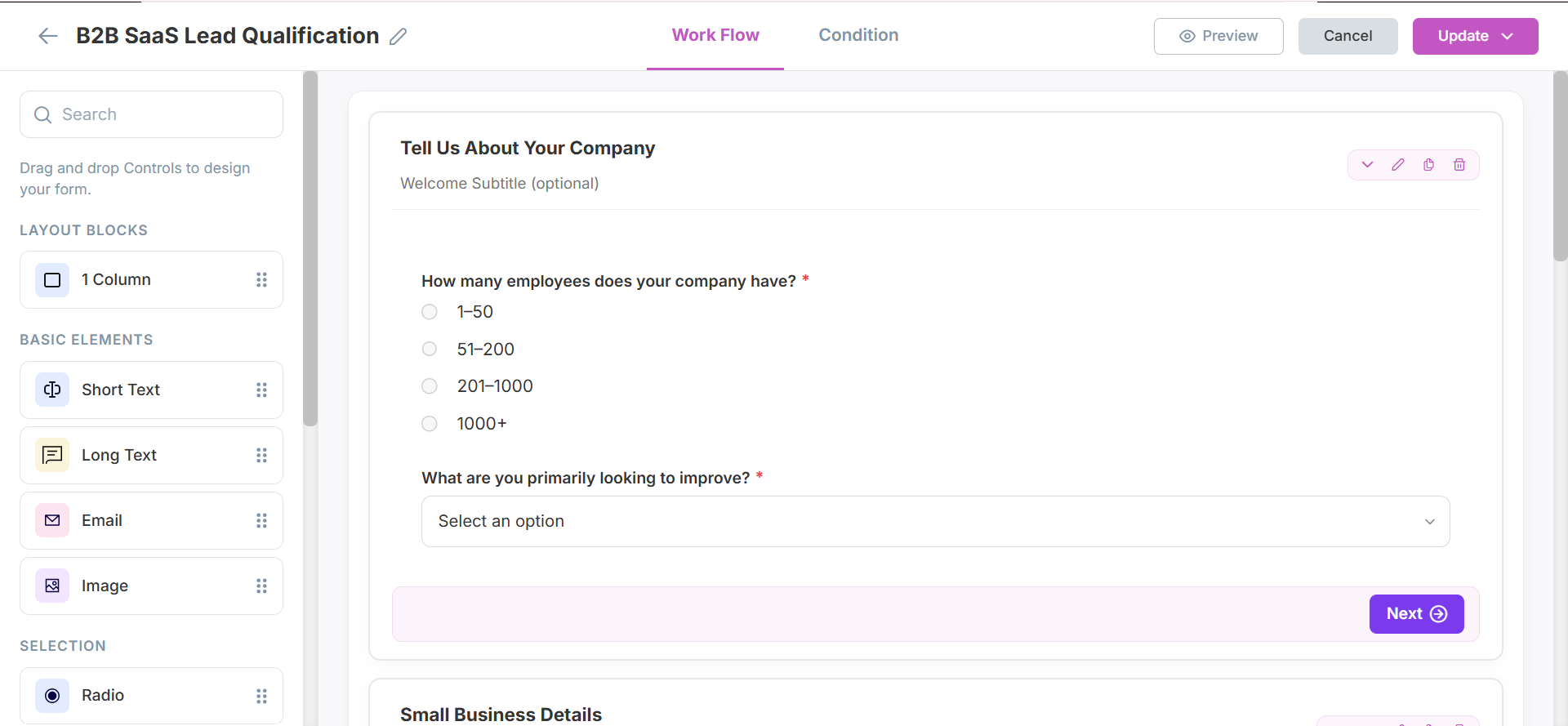
- You can add multiple steps/pages to the if/else logic survey form.
- You can add multiple endings to the if/else logic survey form.
- Endings can be used to route respondents to different results or thank you pages.
Condition Tab
- Click on ** Add Question Rule** to route users based on their selections with hierarchical question branches.
- Set up the Question routing rules.
- Additionally you can enable the Scoring which is an optional feature and set up the Score routing rules.
- Click on Save as Draft to save the form as a draft or Save as Publish to make it live.
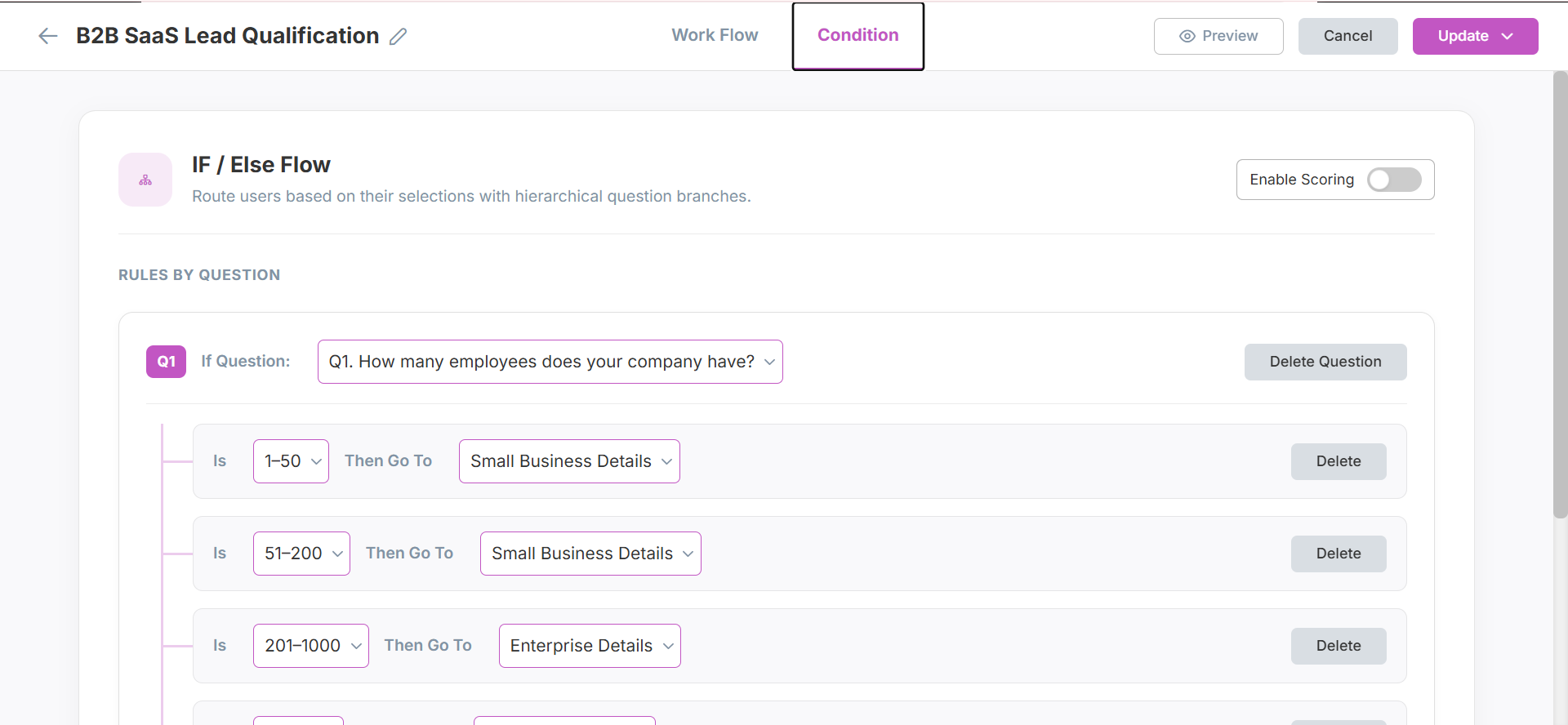
- Must have multiple questions added in the each steps/pages.
- For Endings you can enable CTA(call to action) Button.
- You can set the CTA button label text and URL to redirect the respondents to a specific page.
- You can also design and align CTA button .
✏️ Edit Form
- Select the form you want to edit.
- Click the Edit icon.
- Modifications can be made to the form's name, category, description if needed and click Update.
- Make the necessary changes in the form builder.
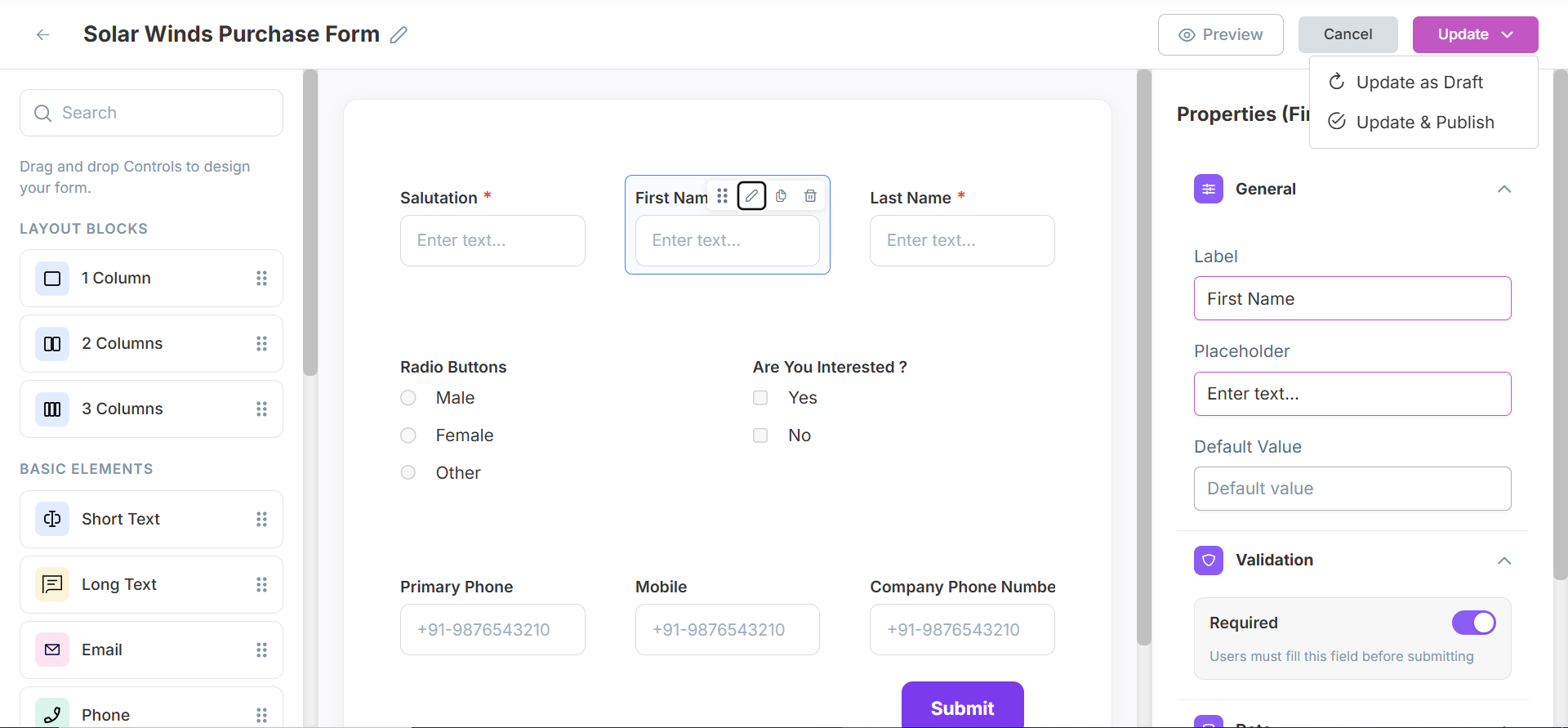
- Click Update as Draft to save the form as a draft or Update as Publish to make it live.
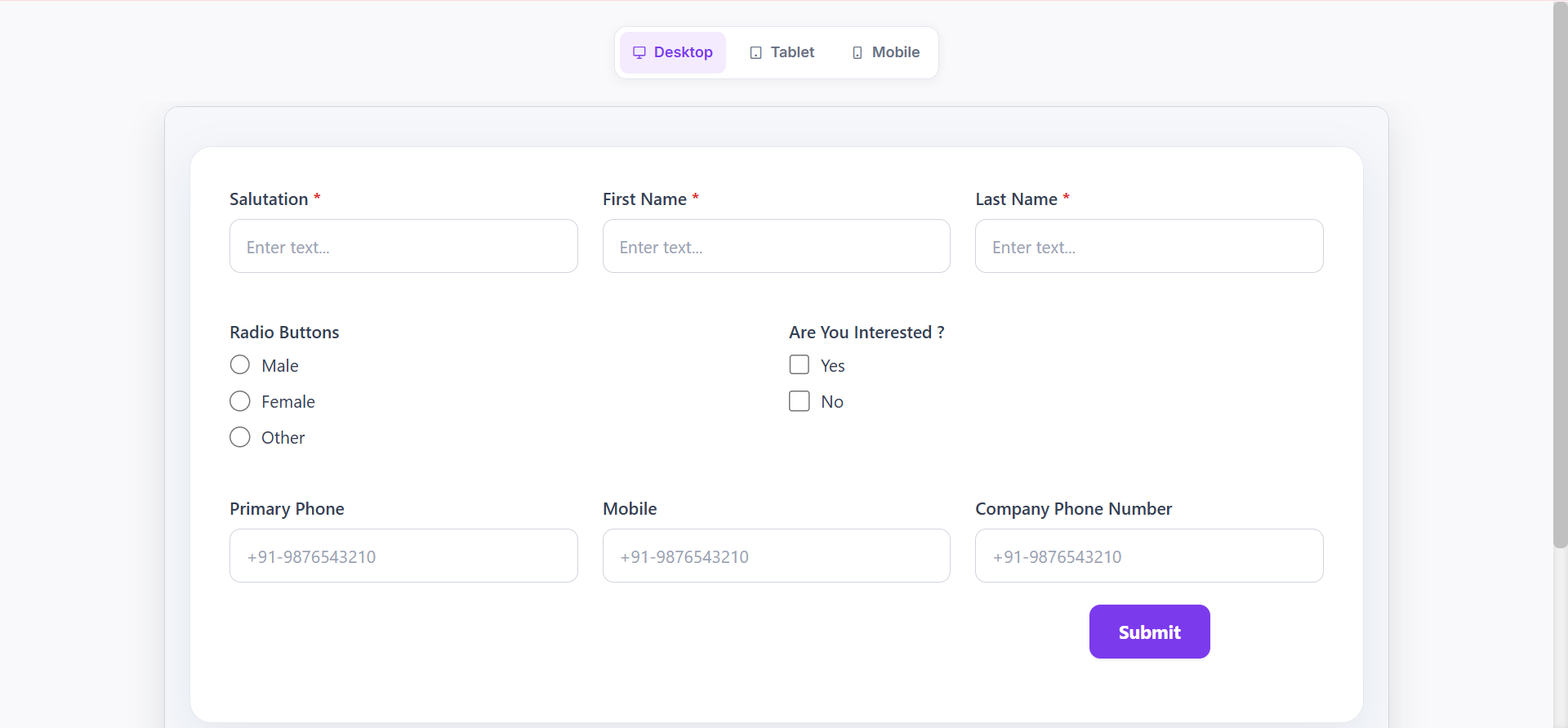
👁️ Preview Form
- Hover on the form you want to preview in grid view and click on the Preview button.
- Or click on the Preview icon in the list view.
- A new tab will open with the form preview where you can see the form in desktop, tablet, and mobile views.
- You can also Preview the form during the form creation process by clicking on the Preview button in the form builder.
🔄 Clone Form
- Click on the three dots in the Grid view and select Clone.
- Or click on the Clone icon in the List view.
- Form will be cloned with the same name and a (Clone) suffix will be added to the name with Draft status.
🔗 Copy Form Link
- Click on the three dots in the Grid view and select Copy Link.
- Or click on the Copy Link icon in the List view.
- You can share the copied link with the respondents to fill the form
- Or use it inside Email Template or Landing Page for the elements as href links.
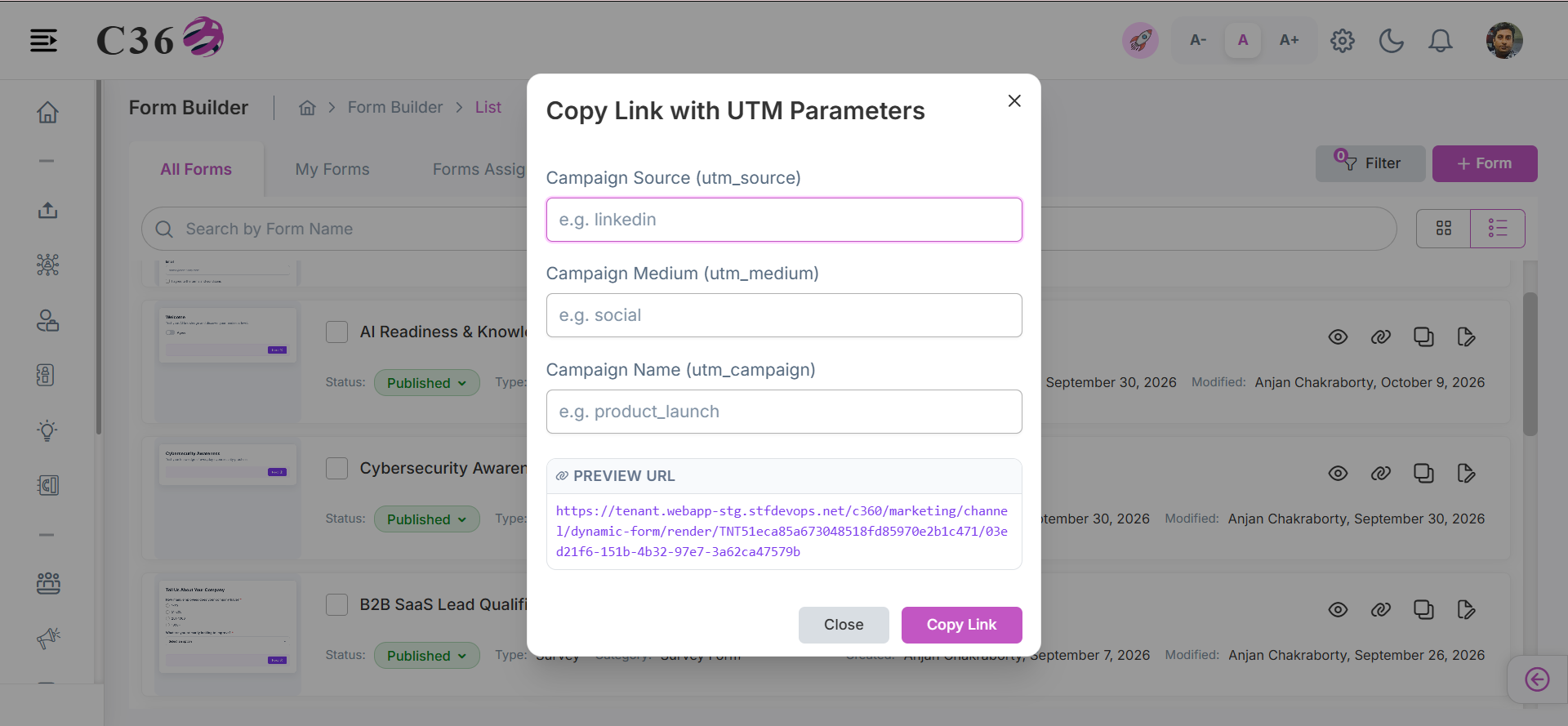
- Can copy the link with UTM parameters (Optional).
- The copied link can be shared with the respondents to fill the form will consider as Stand Alone or External Form.
- The copied link can be used in the Email Campaign or Landing Page to redirect the respondents to fill the form is not consider as Stand Alone or External Form.
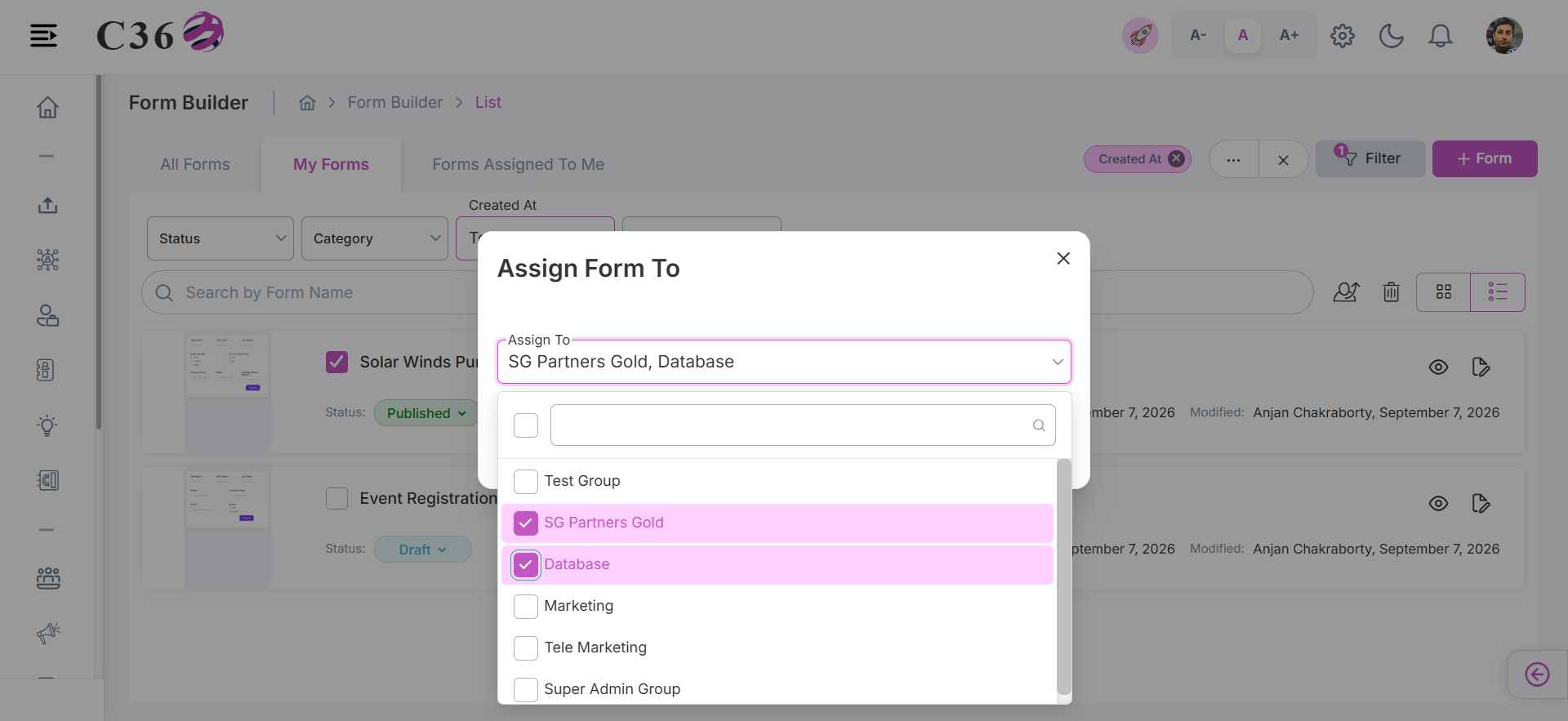
👥 Assigning Forms
- Select one or more forms from the list.
- Click Assign To at the top.
- Choose a group from the dropdown.
- Click Assign to confirm.
🗑️ Deleting Form
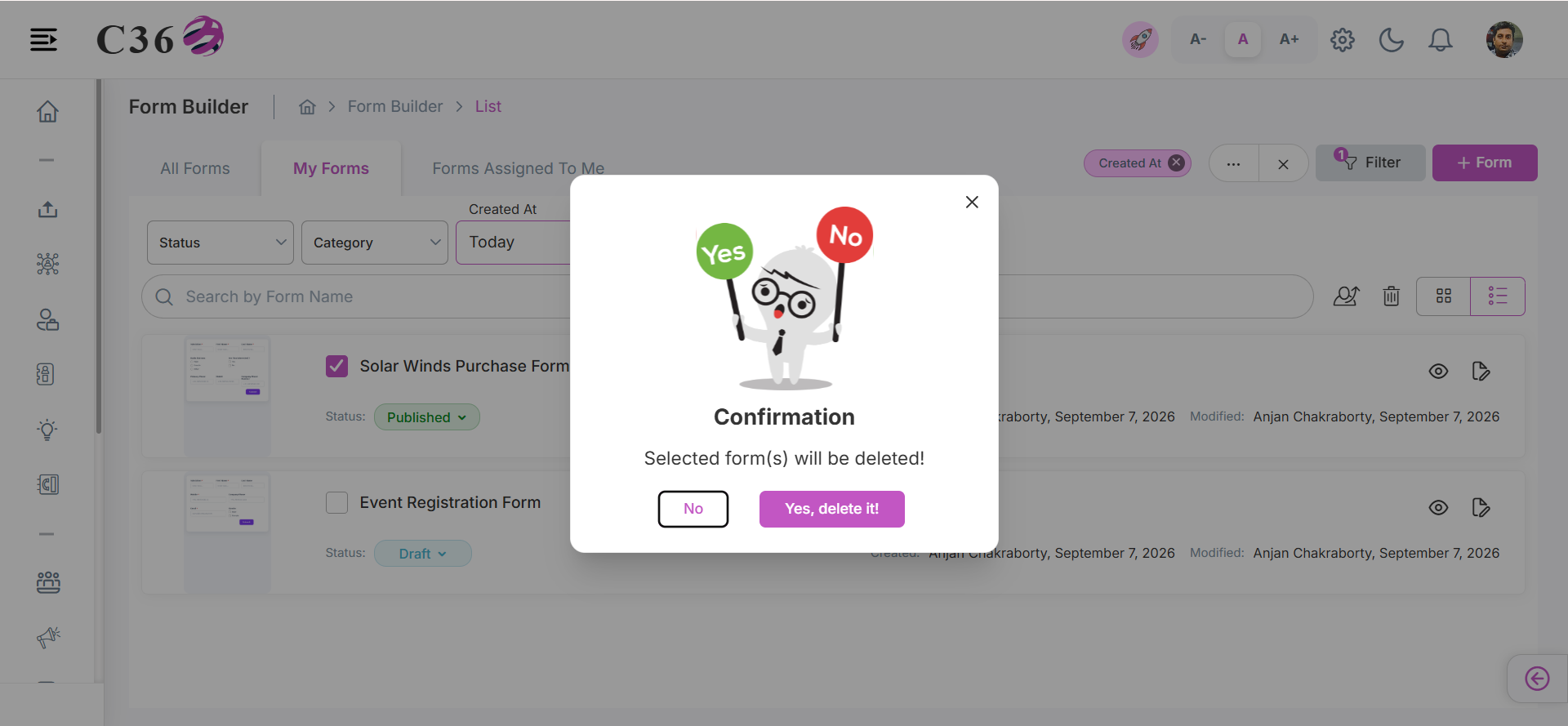
- Select the checkbox(es) for the Form you want to delete.
- Click the Delete icon .
- Click on Yes from the confirmation pop-up if you want to delete.